
Remove inventory
When you use a product, press the red Out button and scan its barcode. The item is removed from your stock straight away, so your inventory always shows what is really left.
1. Press the red Out button
Press the red button on the main screen or Out in the menu.
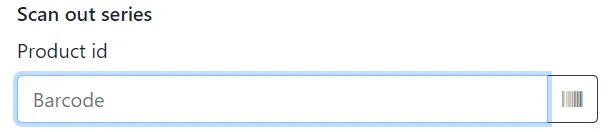
2. Scan the barcode
Scan the barcode of the product you are using.
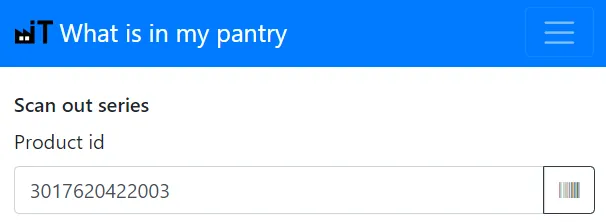
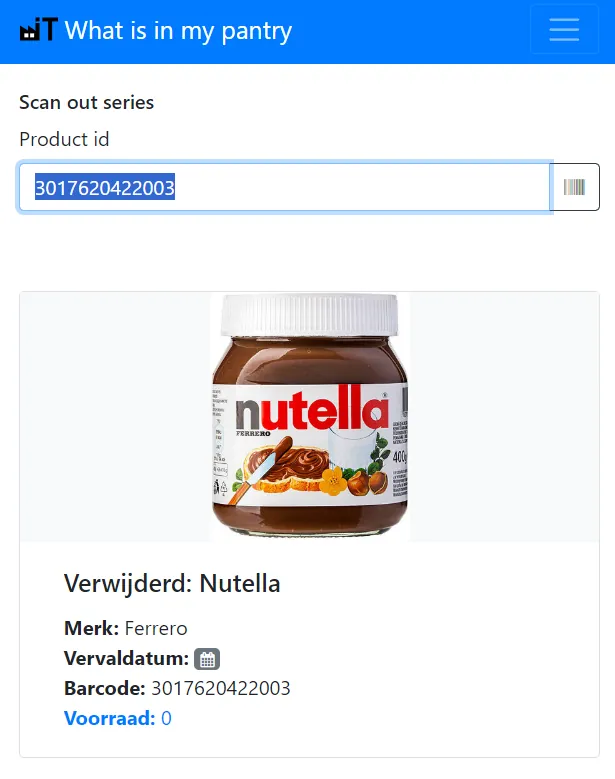
3. The item is removed
When the product is in your inventory, it is removed from stock and you see a confirmation.
Why scanning out matters
An inventory is only useful if it is correct. Scanning products out when you open or use them keeps the numbers right, so the replenishment list knows what to buy and the expiry overview only shows what is actually still there.
Tips
- Keep a phone or cheap Bluetooth scanner near the pantry or fridge, so scanning out takes one second.
- Forgot to scan something out? Correct it later by counting the location.
- If you ask for more than is available, the app books out everything that is left and tells you so.