How can I scan barcodes?
You can scan barcodes in What Is In My Pantry with the camera of your phone or tablet, with a Bluetooth or USB barcode scanner, or with an industrial Android scanner. The camera is fine for occasional use; a separate scanner is much faster if you scan a lot.
Which option is best depends on how many barcodes you scan. For a household, the phone camera or a cheap Bluetooth scanner is usually enough. If you manage a lot of stock every day, for example in a club, canteen or shop, choose a robust industrial scanner.
| Option | Best for | Speed |
|---|---|---|
| Manual search | A few products, fresh food without barcode | Slow |
| Phone or tablet camera | Occasional scanning at home | Medium |
| Bluetooth scanner | Weekly groceries, larger households | Fast |
| USB OTG scanner | Android phone or tablet with USB-C | Fast |
| Industrial Android scanner | Daily use, organisations, rough conditions | Very fast |
| USB scanner on laptop or PC | A fixed spot, e.g. a storeroom | Very fast |
Manual product selection
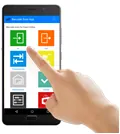
You can search for your items by product code or description. If you only manage a small inventory, this works fine. If you want to process your groceries quickly, use a barcode scanner.
Scan barcodes with a phone or tablet camera
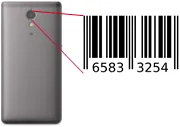
Press the barcode icon next to the input field in the app. A pop-up opens in which you scan the barcode with your camera. This works fine for occasional use, but is too time-consuming for frequent use.

Bluetooth barcode scanner
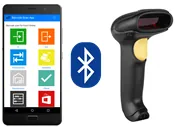
For regular use a barcode scanner is recommended: products are recognised instantly and you can process your stock in real time. Connect the Bluetooth scanner to your phone or tablet; it is then recognised as keyboard input. Make sure the scanner sends an Enter after each barcode. The app then processes the scan and selects the next field, so you can keep scanning without touching the screen.
USB On-The-Go (OTG) scanner
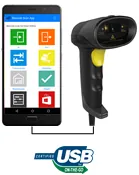
Do you have a USB barcode scanner and a phone or tablet that supports USB OTG? Connect the scanner with an adapter cable. It then also works as keyboard input; again, set it to send an Enter after each barcode.
Industrial barcode scanner
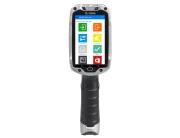
Is handling stock your daily job, or do you work in rough conditions? Then an industrial barcode scanner is probably the best choice. Many industrial scanners run Android, on which the app works well. Install the Chrome browser (from Google Play) because the app needs a browser with good JavaScript support.
Laptop or PC
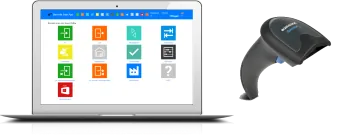
On a laptop or PC, open the web app in your browser and connect a USB barcode scanner to process products very quickly.
Frequently asked questions
Which barcode types are supported?
The app reads the barcodes on food and household products (EAN-13, EAN-8, UPC) and other common 1D barcodes that your scanner or camera can read.
Why is my scan not processed?
Make sure the barcode field is selected before scanning and that your scanner sends an Enter after the barcode.