Add inventory
To add groceries to your inventory, press the green In button, choose a storage location and scan the barcode. The product is added immediately; name, brand and photo are looked up automatically, and you can add the expiry date with one tap.
1. Press the green In button
Press the green button on the main screen (or In in the menu) to add inventory.

2. Select a location and scan the barcode
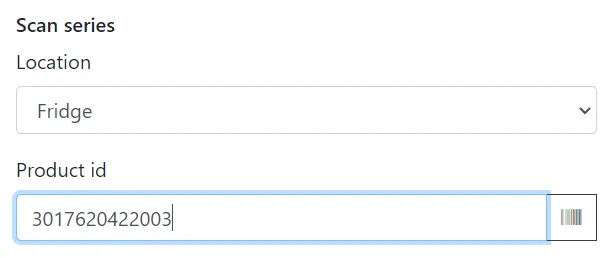
Select a storage location, such as Pantry or Freezer, and scan the barcode of the product. You can use the camera of your phone or a barcode scanner.
3. The product is added
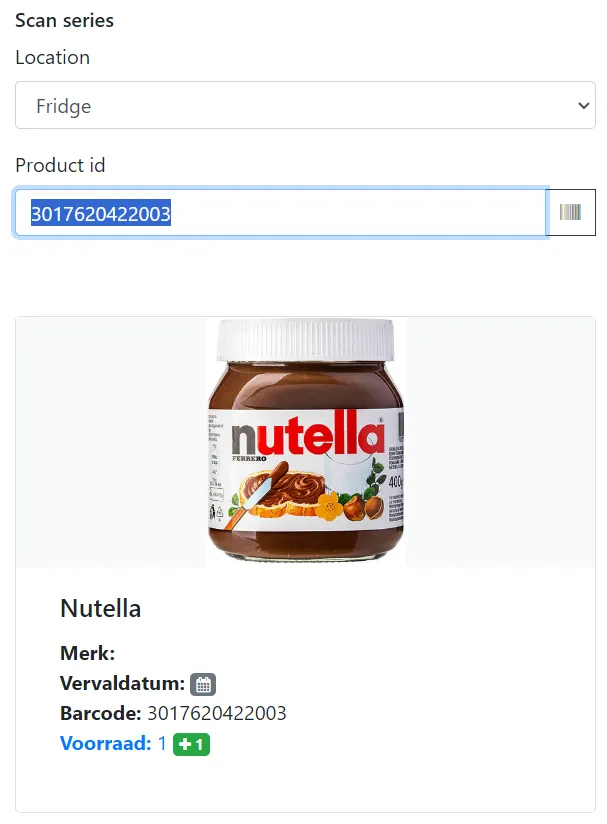
As soon as the barcode is scanned, the product is added to your inventory. For a new barcode, the app fetches the product name, brand and photos from Open Food Facts.
4. Add the expiry date
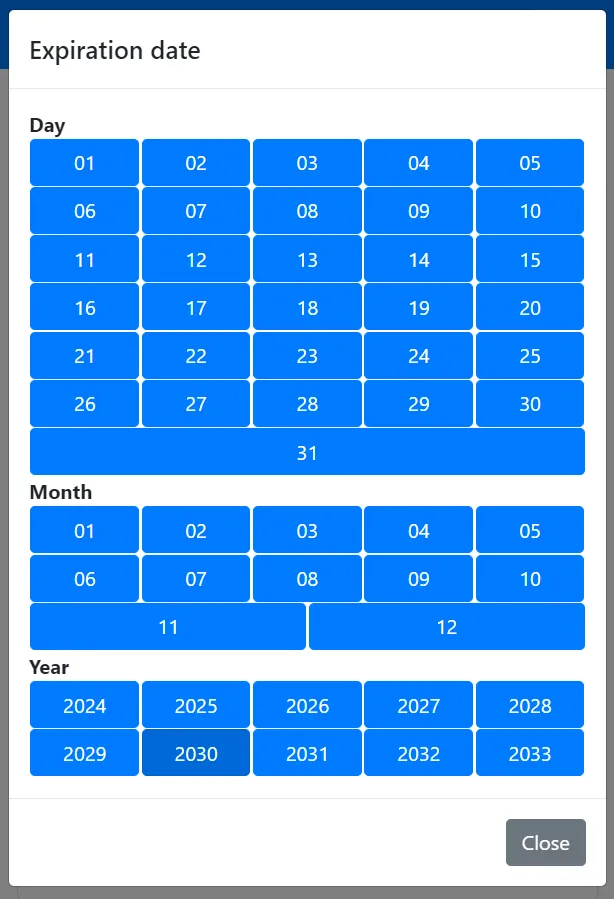
Press the calendar icon to add the expiry date. This is what makes the expiry overview work, so you see in time what needs to be eaten first.
Adding more of the same product
Press the green +1 button to add the same item at the same location again. If you entered an expiry date, the added item gets the same date. Bought six cans of tomatoes? Scan once and press +1 five times.
Tips
- Scan your shopping straight after coming home, before putting it away; it takes about a minute for a full bag.
- Products without a barcode, such as vegetables or home-made meals, can be searched by name or created as your own product.
- Scanning many items in a row? Use Scan series to add a series of barcodes without extra taps.